











Matcher Mono
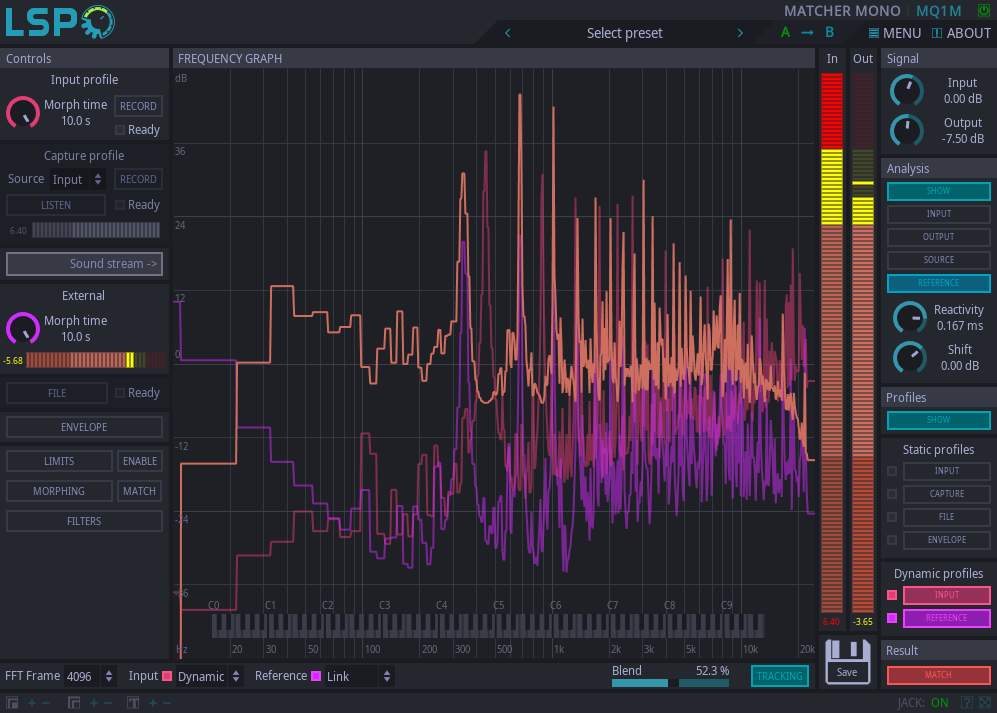
Detailed: LSP Matcher Mono (MQ1M)
Formats: CLAP, LV2, VST2, VST3
Categories: Multiband Equalizer
Developer: Vladimir Sadovnikov
Description:
This plugin allows to introduce the spectral matching to the desired reference track into your track! Bring the sound of your favourite mix into your mix!
The main working principle is simple and based on two profiles. The first profile is the profile of your track which is respresented as a frequency spectrum. The second profile is the profile of the reference track which also is represented as a frequency spectrum. When you have both valid profiles, the plugin automatically computes the frequency response to match your track to the reference one.
To get the profile of the input track, you need to capture the input signal by the plugin. To get the profile of the reference track, you can capture the input signal by the plugin or use shared memory link or sidechain input (for plugin versions where it is present). Even more, you can load a separate file and obtain the profile from it or draw your frequency response envelope using the 10-band equalizer.
But that's not all! You can also perform dynamic matching by turning on continuous input track profile capturing, continuous reference track capturing or both!
The final correction curve may become very aggressive so you also can control the maximum gain adjustment range. And for the dynamic matching case you also can control the morphing speed.
Controls section:
- Input Profile - the sub-section that allows to capture and configure profile of the input track:
- Morph time - the profile morph time for the dynamic input profile. The resulting dynamic profile is smoothed by a filter: the lower value is, the faster dynamic profile is changing.
- Record - the button that starts/stops recording of the static input profile.
- Ready - the LED that indicates that static input profile has been sucessfully recorded.
- Capture Profile - The sub-section that allows to capture and configure static profile of the reference track:
- Source - the combo box that allows to select audio channel for capturing profile data:
- Input - the input audio channel is used for capturing.
- Link - the shared memory link audio channel is used for capturing.
- Record - the button that starts/stops recording of the static input profile.
- Listen - button that allows to pass the selected audio channel to the audio output of the plugin.
- Ready - the LED that indicates that static capture profile has been sucessfully recorded.
- Link - the name of the shared memory link to pass sidechain signal.
- External - the sub-section that allows to control the parameters of the dynamic reference profile when dynamic refrence profile is enabled
- Morph time - the profile morph time for the dynamic input profile. The resulting dynamic profile is smoothed by a filter: the lower value is, the faster dynamic profile is changing.
- File - the button that shows the file loading overlay.
- Ready - the LED that indicates that file profile has been sucessfully processed.
- Envelope - the button that shows the overlay with custom equalization envelope controls.
- Limits - the button that shows the matching profile limits.
- Enable - the button that enables the limits for matching profile.
- Morphing - the button that shows the overlay with dynamic profile morphing timings.
- Match - perform immediate matching between input and reference profile without morphing stage.
- Filters - the button that shows the overlay with additional post-processing filters.
'Signal' section:
- Input - overall input gain.
- Output - overall output gain.
'Analysis' section:
- Show - the button that enables/disables display of all curves in the section on the frequency graph.
- Input - enables drawing of FFT spectrum of the input signal.
- Output - enables drawing of FFT spectrum of the output signal.
- Source - enables drawing of FFT spectrum of the signal passed to the capture profile.
- Reference - enables drawing of FFT spectrum of the reference profile.
- Reactivity - the reactivity of the FFT graph.
- Shift - additional gain shift of the FFT graph.
'Profiles' section:
- Show - the button that enables/disables display of all profiles in the section on the frequency graph.
- Input (Static profiles) - enables drawing of the static input profile.
- Capture - enables drawing of the captured profile.
- File - enables drawing of the profile loaded from the file.
- Envelope - enables drawing of the profile built from envelope.
- Input (Dynamic profiles) - enables drawing of the dynamic input profile.
- External - enables drawing of the dynamic profile from the external channel.
'Result' section:
- Match - Enabled drawing of the matching (resulting) profile.
Other controls:
- FFT Frame - the size of the FFT frame used for processing. The more value is, the more precise low-end processing will be but the more latency will be introduced to the original signal.
- Input - the combo box that allows to select the input profile.
- Static - the static input profile is used which should be captured first.
- Dynamic - the dynamic input profile is used which is permanently recorded and updated.
- Reference - the combo box that allows to select the reference profile.
- None - no reference profile is used, the plugin will use the identity profile which will not affect the sound.
- Capture - the capture profile is used which should be captured first.
- Capture - the capture profile is used which should be captured first.
- File - enables drawing of the profile loaded from the file.
- Envelope - enables drawing of the profile built from envelope.
- Input (Dynamic profiles) - enables drawing of the dynamic input profile.
- File - the static profile built from file is used.
- Envelope - the static envelope profile is used.
- Link - the dynamic external profile is used based on the input of the shared memory link.
- Blend - the mix proportion between the reference profile and the input profile before the matching profile is computed.
- Save - the button that allows to save the impulse response of the matching profile to the separate audio file.
File loading overlay:
- Pitch - the relative file pitch in semitones.
- Head cut - the time to be cut from the beginning of the file.
- Tail cut - the time to be cut from the end of the file.
- Listen - the button that plays the preview of the file.
- Stop - the button that stops the preview of the file.
Envelope overlay:
- Faders - the faders that allow to control the gain of the corresponding frequency band for buildin the custom envelope.
Limits overlay:
- Top - the button that enables the limiting of the matching profile on the top.
- Bottom - the button that enables the limiting of the matching profile on the bottom.
- Enable - the button that enables the limits for matching profile.
- Faders - the faders that allow to control the top and bottom limits of the corresponding frequency band.
Morphing overlay:
- Link - the button that allows to simultaneously edit all timings with one single fader.
- Match - perform immediate matching between input and reference profile without morphing stage.
- Enable - the button that enables the limits for matching profile.
- Faders - the faders that allow to control the morphing time of the corresponding frequency band.
Filters overlay:
- HPF - the button that enables high-pass filter.
- HPF Freq - the cut-off frequency of the high-pass filter.
- HPF Slope - the slope of the high-pass filter.
- LPF - the button that enables low-pass filter.
- LPF Freq - the cut-off frequency of the low-pass filter.
- LPF Slope - the slope of the low-pass filter.
- Clip - the slope that enables brick-wall clipping filter at the specified frequency.
- Clip Freq - the cut-off frequency of the brick-wall clipping filter.